Integrating Microsoft Authentication in WordPress
Begin by introducing the importance of secure user authentication on a WordPress site and the benefits of integrating Microsoft authentication. You cannot totally rely on the username and password; you need to cross check while verifying through Microsoft accounts often includes the multi-factor method.
Put shortcode [custom_microsoft_login] in the page it will redirect user to Microsoft login2. No access page: -
For unregister user who are trying to login on site display a text massage
“Unable to find your account….”
1. Enhanced Security:
Microsoft authentication adds an extra layer of security to your WordPress site. With enhanced security, you can get the surety that authentication validates with. With the multi-factor enhanced security, it adds an extra layer of security.2. Single Sign-On (SSO) Convenience:
Integrating Microsoft authentication enables Single Sign-On, allowing users to log in to your WordPress website using their Microsoft credentials. This improves user experience by reducing passwords they need to remember.3. Trusted Identity Provider:
Microsoft is a trusted and widely used identity provider. Leveraging Microsoft authentication adds credibility to your login process, as users are likely to be familiar and comfortable with Microsoft login interface.4. Compliance with Security Standards:
Microsoft authentication often joins industry standards. Align your authentication process with best practices, provide compliance with data protection and privacy regulations.5. Access to Microsoft Graph API:
Microsoft Graph API allows your WordPress website to access data from Microsoft 365 services. This integration enables features like syncing user profiles, calendar events, or other Microsoft services to provide more integrated and productive user experience.
Following is the step-by-step process to configure the setup to Integrate Microsoft Authentication in WordPress
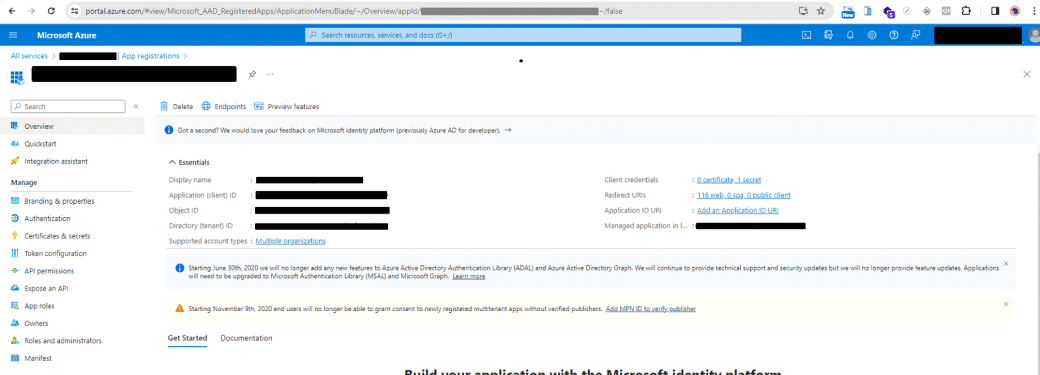
Step 1: Register Your App in Microsoft Azure:
Go to Microsoft Azure Portal. Navigate to Azure Active Directory section. Register new application and note down the Application ID and Directory ID.Step 2: Configure Authentication Settings:
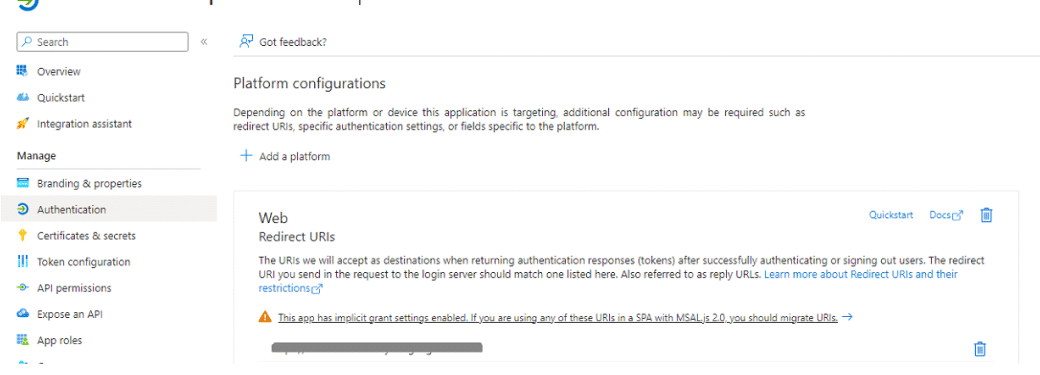
Go to https://portal.azure.com/ site setup authentication.Set up Redirect URIs for your WordPress site. Configure the necessary permissions for your app, such as user. Read and openid.
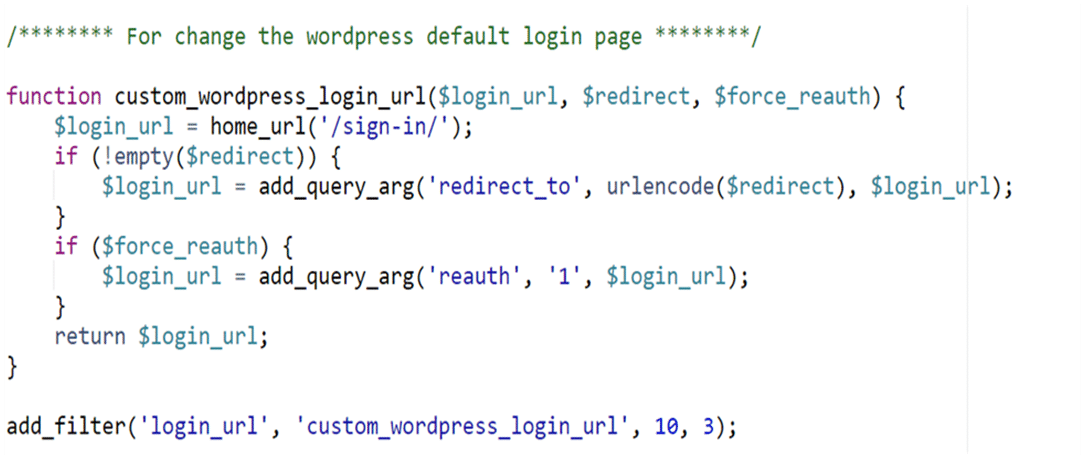
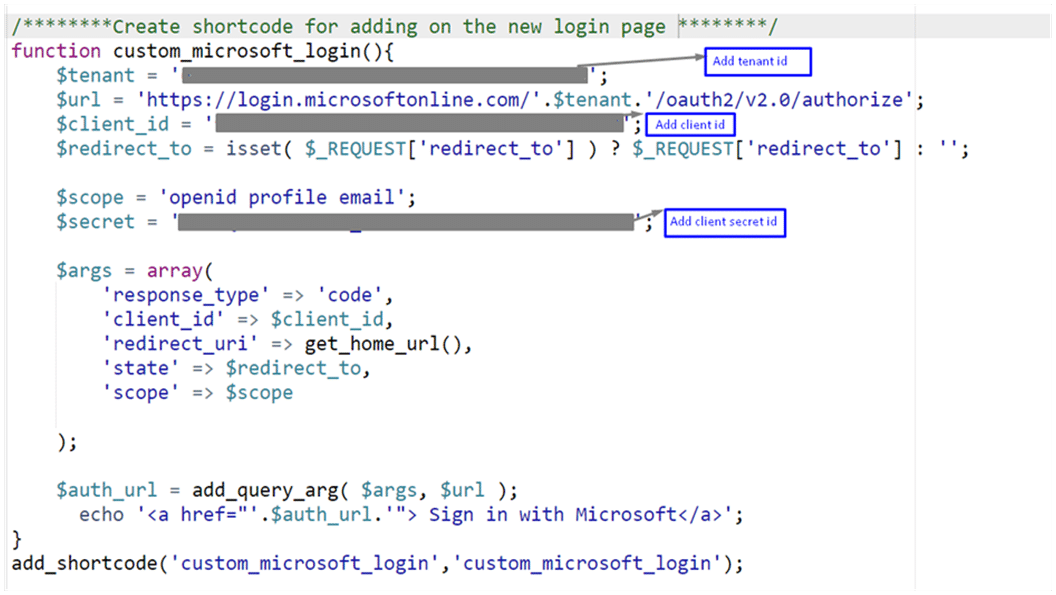
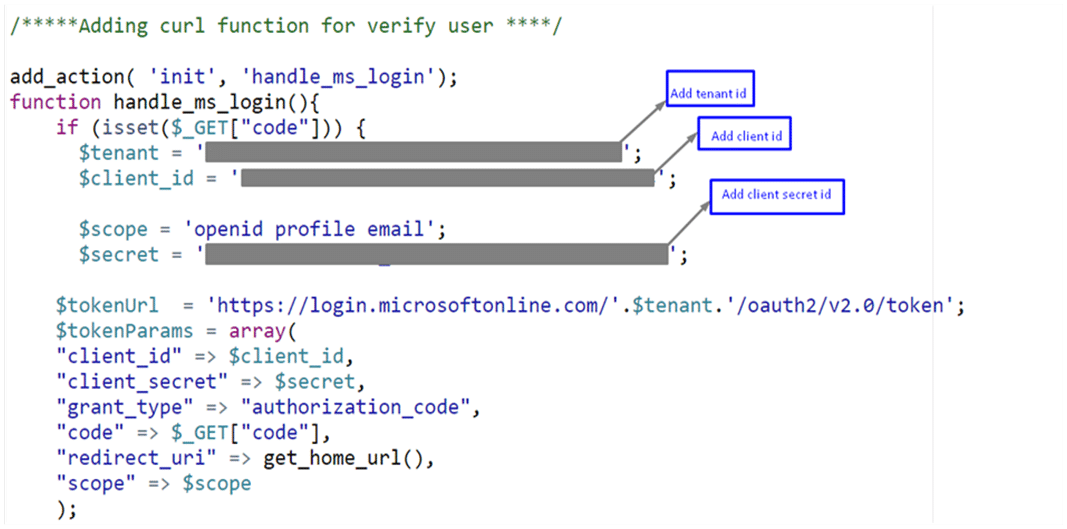
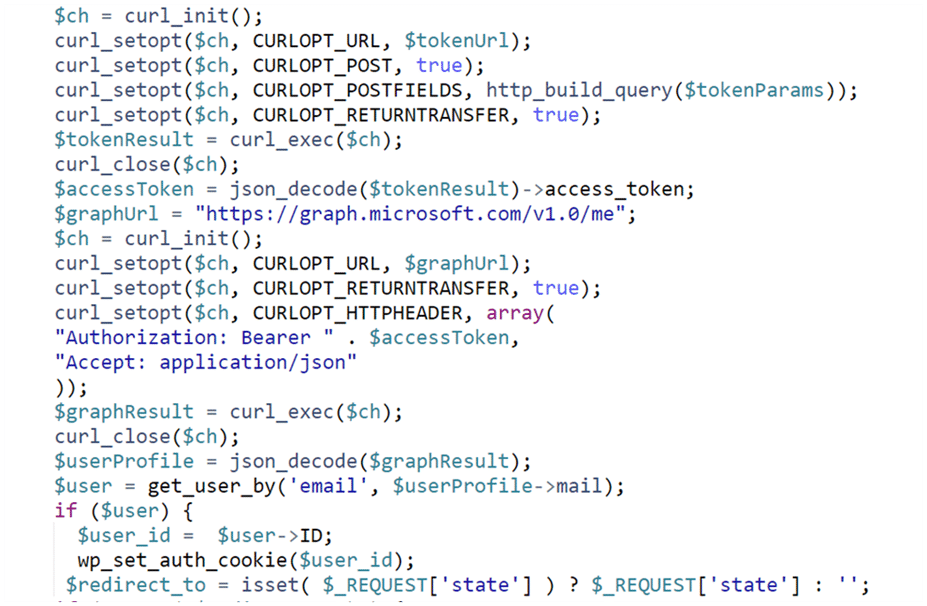
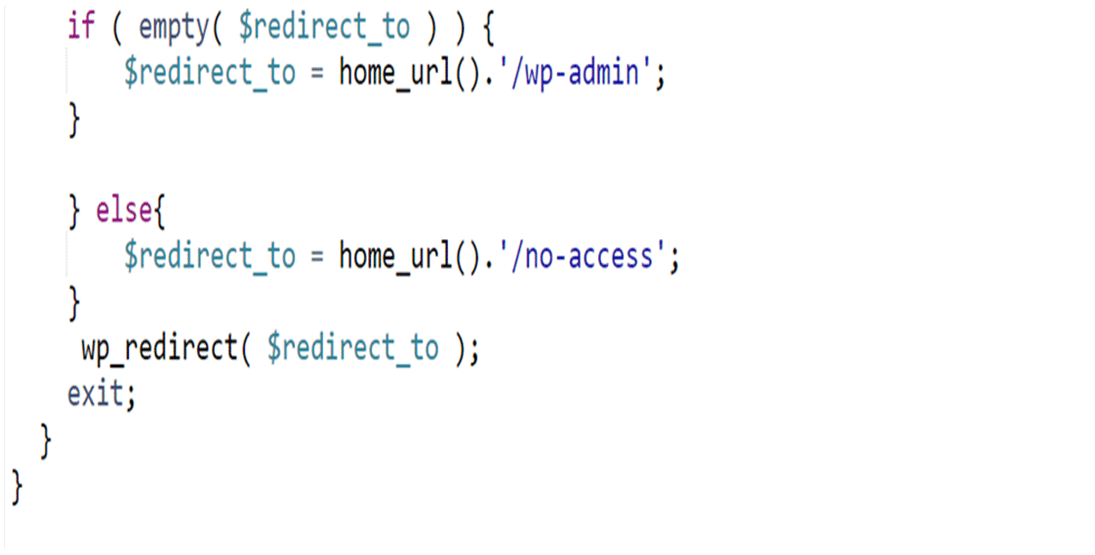
Step 3: Add following code on function file [Wordpress]
Step 4: Create two new pages:
1. Sign in page: -Put shortcode [custom_microsoft_login] in the page it will redirect user to Microsoft login2. No access page: -
For unregister user who are trying to login on site display a text massage
“Unable to find your account….”